Bucket Administration: Download a CAD File
Role Required:
-
Bucket Administrator
Included in this article:
There are a number of ways to export a CAD file from redeye, where that file has been previously uploaded to your artefact.
Drafting Check Out
The most common reason for doing this is during a Drafting Check-out step of a workflow, please refer here if this is what you are doing now.
If you want to export CAD files from your drawings for any reason other than a Drafting Check-out workflow step, you can do this singularly from the Artefact Page.
Download Latest Native File
NOTE: If this feature is not available for you, it may not be enabled on your Bucket or you may not have Permission. Contact your Bucket Administrator or Support to discuss.
From the Artefact Page, select the Tools tab from the Sidebar. Next select the Upload/Download drop down menu, and then Download Latest Native File.
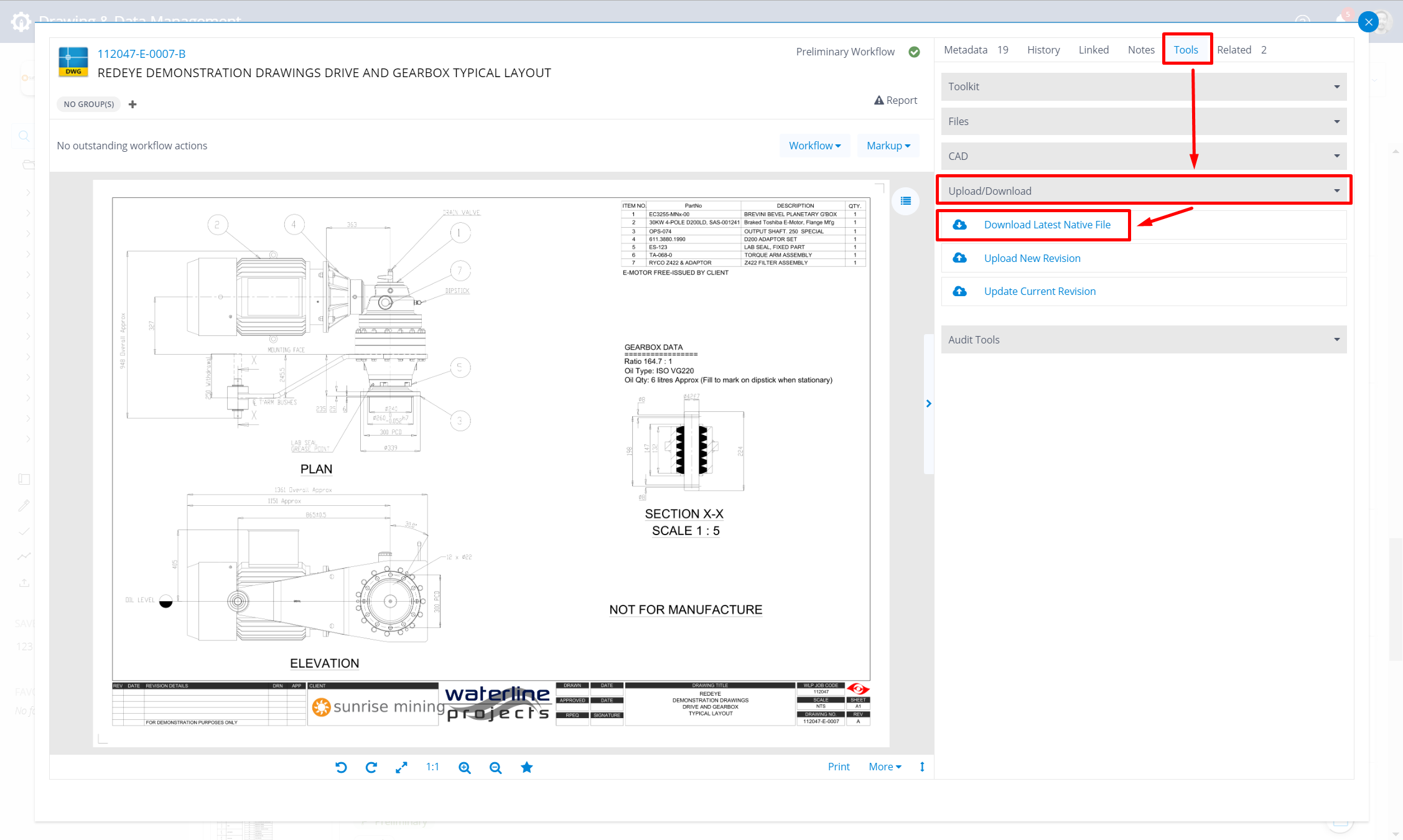
The CAD file will automatically download to your default folder for your Web Browser.
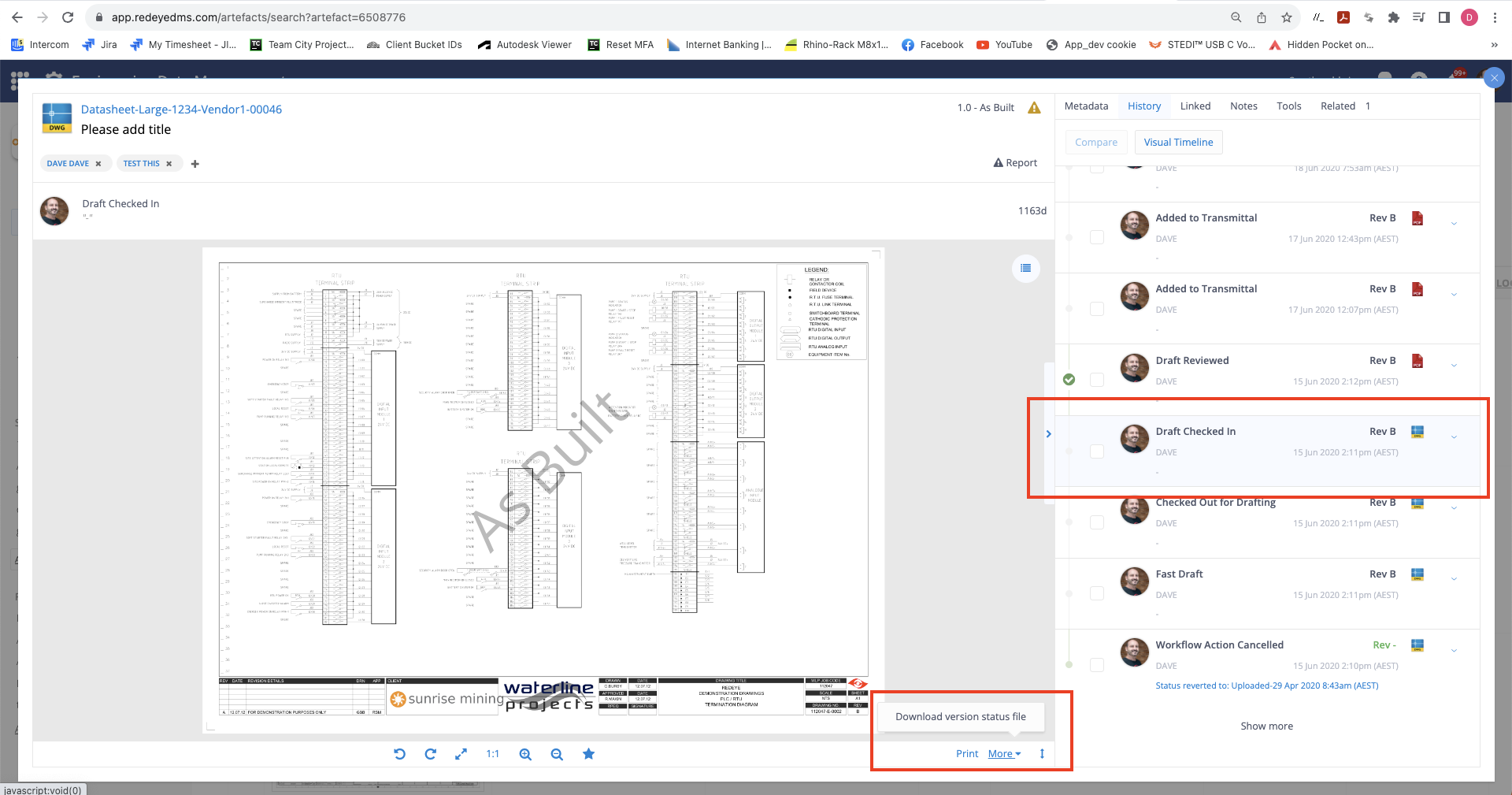
Download Version Status File using More menu
Any version file can be downloaded by a Bucket Administrator using the More menu below the artefact preview. First, click on the history version you want to retrieve (eg the latest CAD version entry in History).
Now select More->Download Version Status File to retrieve the file (select a CAD format in History else you will receive the file format of the selected version eg. Tiff or PDF etc)